


How to Enable ChatGPT Developer Mode: Complete Guide (2026)
If you’ve been searching for how to enable ChatGPT developer mode, you’re probably trying to do one of two things: (1) connect ChatGPT to real tools (CRMs, databases, ticketing systems) or (2) figure out why the Developer mode toggle isn’t showing up in your account.
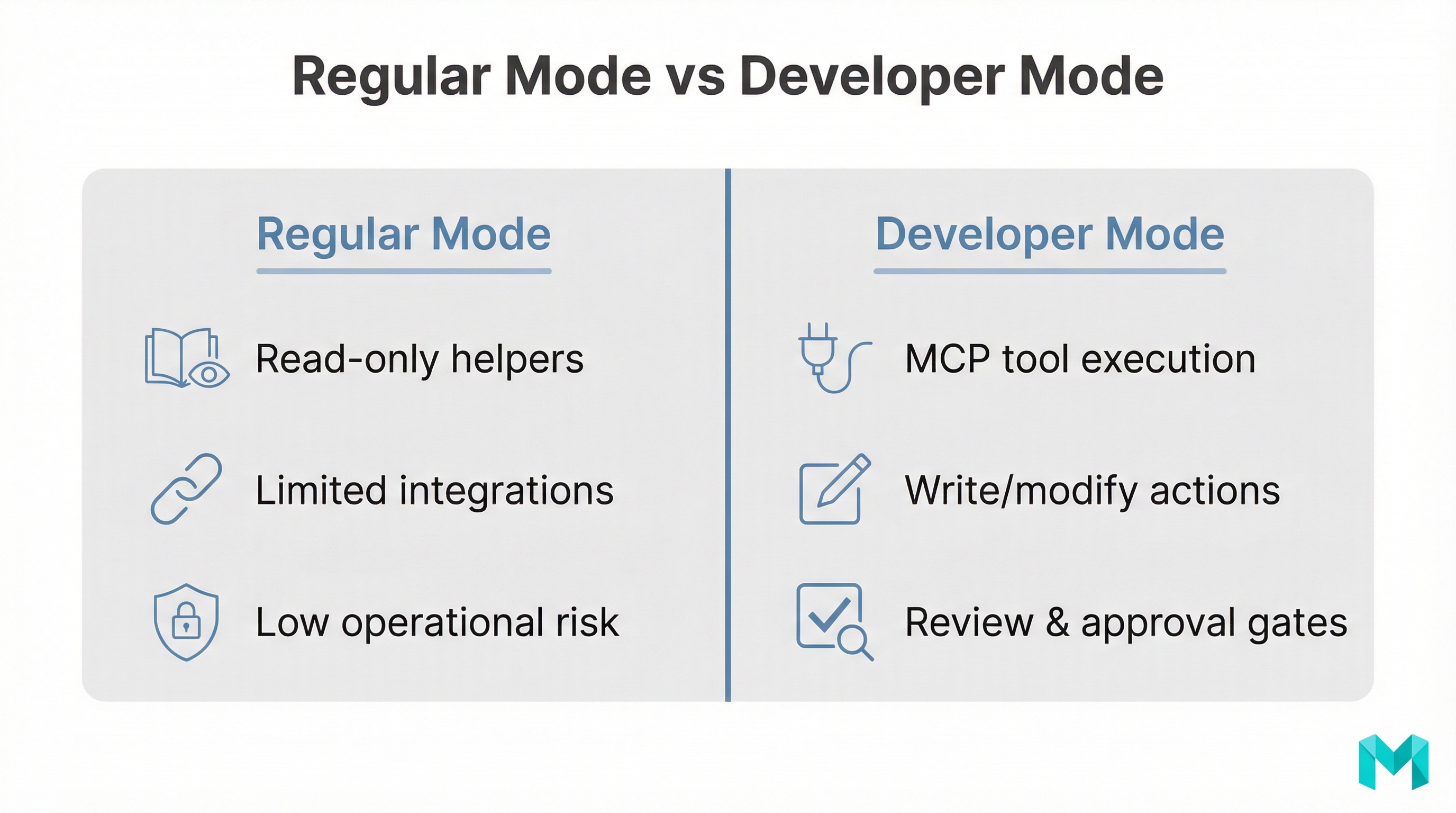
Developer Mode is an official, beta feature designed to give ChatGPT full Model Context Protocol (MCP) client support for tools— including write/modify actions—so it can do more than just “search and summarize.” It can potentially create records, update spreadsheets, trigger workflows, or orchestrate tasks across your apps. That power also comes with real risk: prompt injection, misconfigured permissions, and accidental write operations.
This guide breaks down what Developer Mode actually is, who can access it, how to turn it on, how MCP apps/connectors work, and how to troubleshoot the most common issues—so you can enable it confidently and safely.
What is ChatGPT Developer Mode? (And what it’s not)
ChatGPT Developer Mode is a beta capability that enables full MCP client access for apps and tools including tools that can read and write data so ChatGPT can take actions inside connected systems.
OpenAI’s developer documentation describes it as “powerful but dangerous” because write actions can have consequences (e.g., creating or changing records incorrectly).
Developer Mode vs “developer mode prompts” (common confusion)
There’s a second meaning of “developer mode” floating around the internet—especially on forums—where people use prompt hacks to make ChatGPT “ignore policies” or behave like an unfiltered assistant. That’s not the same thing.
Official feature vs jailbreak prompts
In this article, we’re only talking about the official ChatGPT Developer Mode feature related to MCP apps/connectors and tool execution. If your goal is “uncensored mode,” that’s a different topic and typically violates platform policies. For a broader perspective on developer-mode-style settings in chatbots, see our related guide: developer mode in chatbots (detailed guide).
Why ChatGPT Developer Mode matters (benefits + real risks)
Developer Mode matters because it’s the bridge from “chat” to “action.”
- Workflow automation: Create tickets, update CRM fields, schedule events, or draft-and-save documents.
- Tool orchestration: Combine multiple apps in a single flow (e.g., fetch customer context → draft response → create task).
- More reliable tool use: You can be explicit about which connector and tool should run, reducing ambiguity.
Understand the risks before enabling write actions
- Prompt injection: A malicious webpage, doc, or message can trick the model into leaking data or running unsafe actions.
- Write-action mistakes: Wrong payloads can overwrite fields, create duplicate records, or push incorrect updates.
- Over-permissioned connectors: If OAuth scopes are too broad, a single mistake becomes a bigger incident. Read more:
- Model Context Protocol (MCP)
- Developer Mode & MCP apps in ChatGPT (beta)
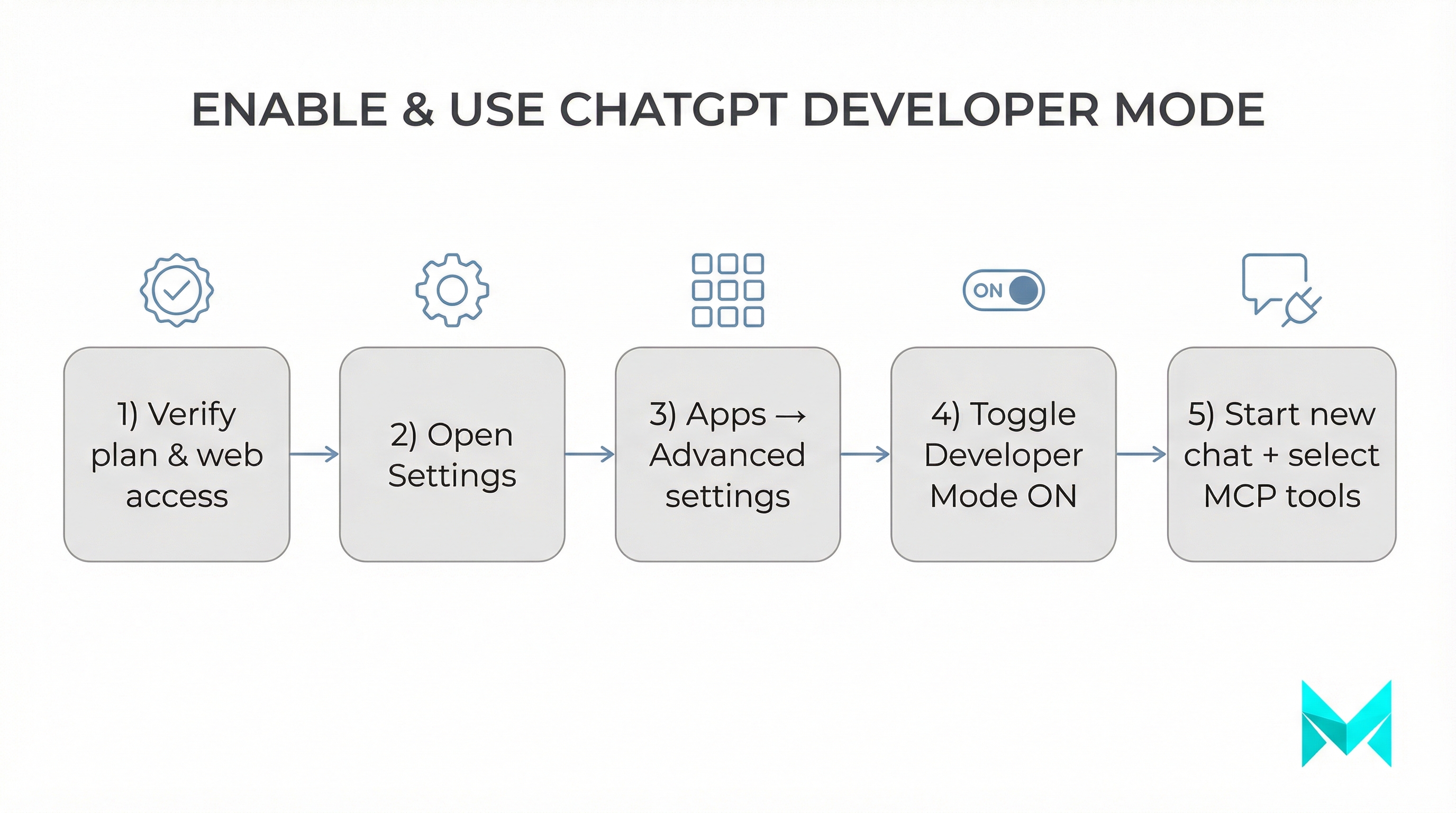
How to enable ChatGPT Developer Mode (step-by-step)
The exact UI can change (Developer Mode is beta and still evolving), but the canonical path described in OpenAI’s docs is:
Settings → Apps → Advanced settings → Developer mode
Source: https://platform.openai.com/docs/guides/developer-mode
Eligibility + plan differences (Plus/Pro vs Business vs Enterprise/Edu)
Based on OpenAI documentation and help center notes:
- Web only: Developer Mode is currently described as available on ChatGPT web (not guaranteed on mobile).
- Paid plans / eligible workspaces: The docs mention availability in beta for Pro, Plus, Business, Enterprise, and Education accounts (availability can vary by rollout and workspace permissions).
- Business / Enterprise / Edu governance: In many org contexts, admins/owners control enabling developer mode and publishing MCP apps; Enterprise/Edu may support finer-grained access via RBAC.
Source: https://help.openai.com/en/articles/12584461-developer-mode-and-mcp-apps-in-chatgpt-beta
Turn on Developer Mode in Settings
- Open ChatGPT on the web and log into the eligible account/workspace.
- Open Settings (usually from your profile menu).
- Go to Apps (or Apps & Connectors depending on your UI).
- Open Advanced settings.
- Toggle Developer mode to ON.
Once enabled, you should be able to access Developer Mode from the tools menu (often via the + / tools picker in a chat composer), and you may see options to create/configure MCP apps.
MCP apps, connectors, and a safe setup checklist (MCP)
Developer Mode becomes valuable when you connect it to MCP apps/servers that expose tools. In plain terms:
- MCP server: A remote service that publishes a catalog of tools/actions.
- MCP app (in ChatGPT): A configured connection to that server, including authentication and enabled tools.
- Tools: The actual callable actions (e.g., create_ticket, update_record, read_file).
OpenAI docs highlight support for protocols like SSE and streaming HTTP, and authentication modes like OAuth, No Auth, and Mixed Auth (details may evolve). Source: https://platform.openai.com/docs/guides/developer-mode
Safe setup checklist (use this before you enable write actions)
- Start with read-only wherever possible: Prefer tools annotated as read-only; treat anything else as potentially destructive.
- Limit OAuth scopes: Use least privilege. Avoid admin scopes unless required. Prefer dedicated service accounts.
- Add confirmation gates for writes: Treat confirmation prompts as a safety control. Review JSON payloads before approving.
- Harden prompts for tool choice: Name the app and tool explicitly; disallow alternatives to avoid accidental tool switches.
- Threat-model prompt injection: Treat external text as untrusted. Separate “data” from “instructions” in prompts.
Example: safer prompt pattern for tool execution
When you want an action taken, specify tooling constraints:
- “Use only the Acme CRM app and its update_record tool. Do not browse or use other tools.”
- “First call Repo.read_file with
{ path: '...' }. Then call Repo.write_file with the modified content. No other tool calls.”
This aligns with OpenAI’s recommendations for disambiguation and sequencing in Developer Mode:
Troubleshooting: Why is my developer mode not showing? (and “not working” fixes)
If developer mode chatgpt options are missing, it’s usually one of these causes:
-
You’re not on an eligible plan or workspace
Developer Mode is typically associated with paid plans and/or specific workspace types. In Business/Enterprise/Edu, you may also need admin authorization. -
You’re on mobile (or a restricted client)
Official guidance frequently references ChatGPT web for Developer Mode and MCP apps. -
Workspace permissions / RBAC
Enterprise/Edu may require admins to grant access via roles/permissions before you can toggle it. Business can have stricter admin-only enablement behaviors (varies as features roll out).
Source: https://help.openai.com/en/articles/12584461-developer-mode-and-mcp-apps-in-chatgpt-beta -
Rollout timing
Because it’s beta, features can be staged. If a teammate sees it and you don’t, this may be a phased rollout. -
“Enabled, but nothing happens”
Developer Mode may require you to start a new chat for the tools menu to reflect new options. Some experiences may not support Developer Mode (for example, certain project/GPT contexts).
Quick diagnostic checklist
- Confirm you’re on web, signed into the correct workspace.
- Confirm you can see Apps/Connectors settings at all.
- Ask an admin to confirm workspace permissions (and RBAC where applicable).
- Toggle off/on, refresh, then start a new chat.
How to turn off developer mode ChatGPT (or revert to normal)
If you’re done testing—or you want to reduce risk—use one of these approaches:
- Toggle Developer mode OFF in Settings (Apps → Advanced settings).
- Start a new chat without enabling Developer Mode tools (many tool selections apply per conversation).
- Remove/disable apps/connectors you no longer trust or need.
This is also helpful if you suspect a connector misconfiguration or you want to pause write actions while you audit scopes.
Frequently Asked Questions (FAQs)
How Musketeers Tech Can Help
Enabling ChatGPT Developer Mode is the easy part making it safe, reliable, and useful for real business workflows is where most teams get stuck. At Musketeers Tech, we help you go from “cool demo” to production-grade automation by designing the right MCP/app architecture, tightening permissions, and building guardrails against prompt injection and unintended write actions.
If you want ChatGPT to actually update your CRM, create support tickets, or orchestrate operations across tools, we can:
- Design and implement secure AI workflows (least-privilege access, confirmation gates, auditability)
- Build custom MCP-compatible integrations and AI agents aligned to your business processes
- Prototype quickly, then harden for production with proper testing and monitoring
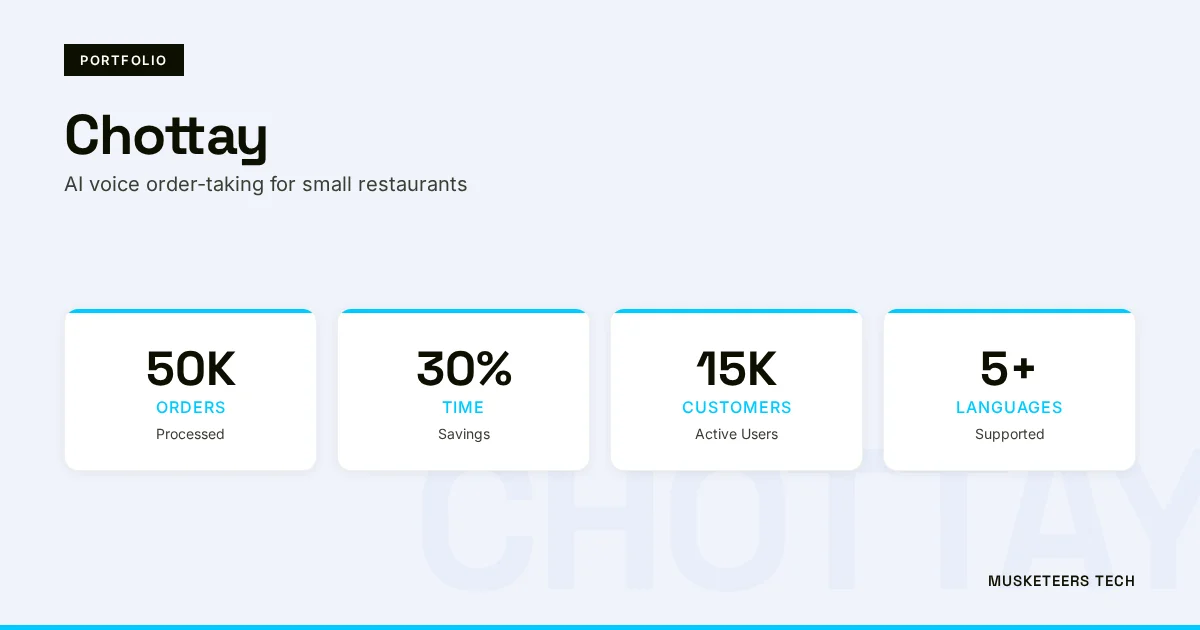
Relevant work includes building AI assistants and automation-first experiences like BidMate (AI assistant workflows) and Chottay (AI-driven order-taking systems), where safety and correctness matter as much as capability.
AI Agent Development
Design and ship secure MCP-powered agents that act across your stack.
Generative AI Application Services
Add GenAI features to your product with safety and governance by design.
Explore more:
- AI Agent Development: https://musketeerstech.com/services/ai-agent-development/
- Generative AI Application Services: https://musketeerstech.com/services/generative-ai-application-services/
- Portfolio: https://musketeerstech.com/portfolio/
Final Thoughts
Knowing how to enable ChatGPT developer mode is increasingly important for teams that want AI to do more than generate text. Developer Mode and MCP apps can turn ChatGPT into a practical operator across your tools—updating records, triggering workflows, and assisting teams with real execution. But that same capability introduces security and operational risk, especially around prompt injection and write-action mistakes.
If you take one thing away: enable Developer Mode intentionally, start with least privilege, and treat confirmations plus tool selection constraints as your safety net. Once you’ve proven reliability in a controlled environment, you can scale the integration across teams with clearer governance and permissions.
Need help implementing Developer Mode safely? Check out our Generative AI services or explore our recent projects.
Last updated: 04 Feb, 2026
